![white logo.png]](https://faq.procurementexpress.com/hs-fs/hubfs/white%20logo.png?height=46&name=white%20logo.png)
Q1 – Where has the PO history gone?
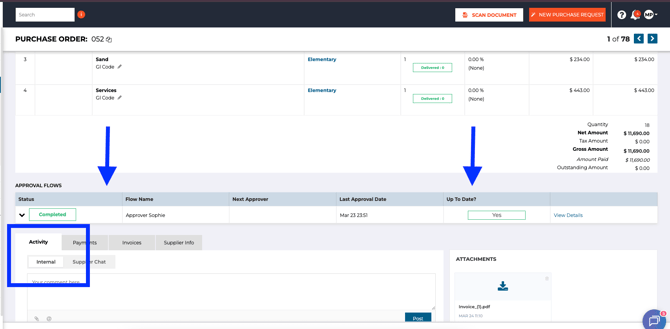
The history feed hasn't been removed – it has moved into the Activity tab at the bottom of the PO. Everything that previously appeared in the history section is still there, now called Timeline & Correspondence.
|
To view it: Click the Activity tab at the bottom of the PO. Scroll down to the Timeline & Correspondence section to see the full audit trail. |
Q2 – How do I filter the activity feed?
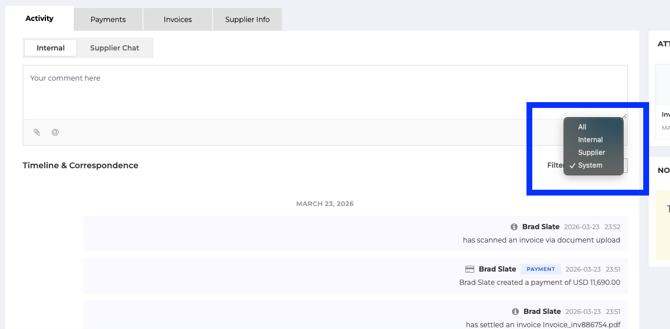
A Filter button appears in the top-right corner of the Timeline & Correspondence section. Clicking it opens a dropdown with four options:
- All – shows every activity entry (default view)
- Internal – shows only internal comments posted by your team
- Supplier – shows only system generated supplier messages, like Sent to Supplier, Supplier opened the email, etc.
- System – (this is the old "History" messages) shows only automated system events, such as status changes, payments recorded, and invoice scans
Q3 – Where do I chat with the supplier?
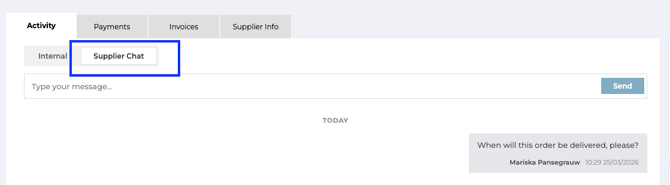
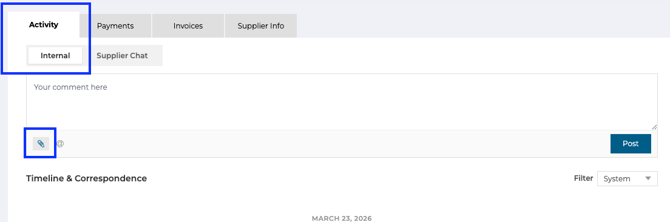
Supplier Chat has moved from the Actions button at the top of the PO to the Activity tab at the bottom. You will now find two sub-tabs side by side:
- Internal – for private comments visible only to your team
- Supplier Chat – for messages sent directly to the supplier
Simply click Supplier Chat, type your message in the comment box, and click Post.
|
Note: Messages posted under Supplier Chat are visible to the supplier. Always use Internal for comments you want to keep in-house. |
Q4 – Where are my attachments?
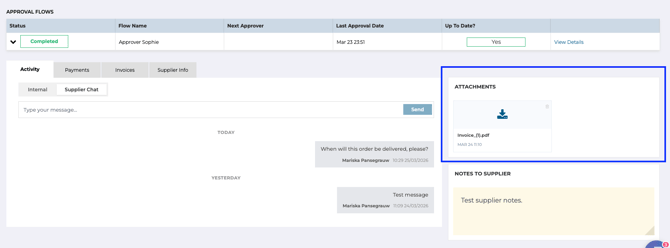
Attachments have moved from the bottom of the PO to the right-hand panel. You will find them in the Attachments section on the right side of the screen, directly above Notes to Supplier.
Any files attached to the PO – such as invoices or supporting documents – appear here with the filename and upload date. Click the download icon to retrieve a file.
Q5 – How do I add an internal comment with an attachment?
- Make sure the Internal sub-tab is selected under Activity.
- Type your comment in the text box.
- Use the paperclip icon below the text box to attach a file.
- Click Post to save the comment and attachment to the PO.
The comment and attachment will appear in the Timeline & Correspondence feed and the file will also be visible in the Attachments panel on the right.
Q6 – What types of system events appear in the activity feed?
When you filter by System, you will see automated entries such as:
- Invoice scanned via document upload
- Payment recorded (including amount and currency)
- Approval status changes
- PO created or edited
These entries are generated automatically and cannot be edited or deleted.
Q7 – Has anything else changed on the PO?
The core PO information and approval workflow remain the same. The tabs at the top of the activity panel – Activity, Payments, Invoices, and Supplier Info – are unchanged. Only the layout within the Activity tab and the position of attachments have been updated.
Quick Reference: What moved where?
|
Feature |
Old location |
New location |
|---|---|---|
|
PO History / Audit trail |
History section (bottom of PO) |
Activity tab → Timeline & Correspondence |
|
Activity filter |
Not available |
Activity tab → Filter dropdown (All / Internal / Supplier / System) |
|
Supplier Chat |
Actions button (top of PO) |
Activity tab → Supplier Chat sub-tab |
|
Internal comments |
Comment box at bottom |
Activity tab → Internal sub-tab |
|
Attachments |
Bottom of PO |
Right-hand panel, above Notes to Supplier |