![white logo.png]](https://faq.procurementexpress.com/hs-fs/hubfs/white%20logo.png?height=46&name=white%20logo.png)
Where to find the Access Management table
- Log in to ProcurementExpress as a Company admin (this is required to manage QuickBooks settings).
- Click on your initials in the top right, and select Company Settings.
- Click on the QuickBooks Online tab.
- Scroll to the Access Management table. You should see the following:
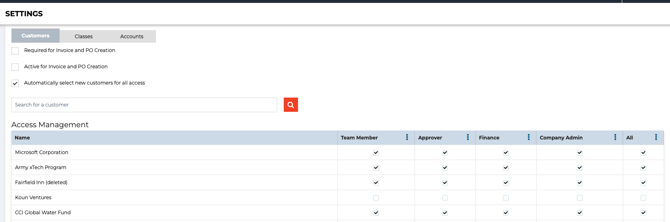
From this page, you can enable or disable customer or class fields entirely (account fields are always on for the category based QuickBooks Online integrations and always off for item based QuickBooks Online integrations. Choose whether or not new customers added after the initial import and integration are automatically selected and available the moment they sync or not, if the customer or class fields are required, and enable or disable access to specific accounts, customers, or classes.
Don't forget to save your changes when done!
|Still have a few questions? Use the Live Chat Icon in the bottom right-hand corner or send an email to support@procurementexpress.com to get in touch with the friendly support team.
If you have a feature suggestion, we’d love to hear from you! Add your feature suggestion on feedback.procurementexpress.com and upvote others you like.