![white logo.png]](https://faq.procurementexpress.com/hs-fs/hubfs/white%20logo.png?height=46&name=white%20logo.png)
Custom field rules let you stop irrelevant fields from cluttering your PO, line-item and RFQ forms. A field that doesn't apply is hidden and not required everywhere it appears (form, PDF and API) — nothing gets cleared or set automatically.
Prerequisite
-
Admin access to Settings.
-
Custom fields already created ("how-do-i-set-up-custom-fields").
-
Departments and/or budgets set up if you want to filter by them.
How to set a rule
-
Go to Settings → Purchasing Tab → Scroll down to see Custom fields.
-
Open the custom field you want to control (on a purchase order, line item or RFQ).
-
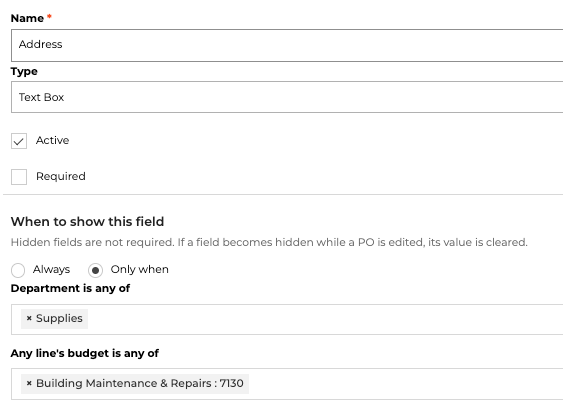
Under Which options to offer / always show, turn on "Only when…" and choose when the field should apply:
-
Department — e.g. only show "Payment Website" when the department is Travel.
-
Line budget — e.g. only show "Unit Number" when the line's budget is Fleet.
-
Parent field answer — e.g. only show "Platform Height" when Equipment Type is Aerial Manlifts.
-
-
For dropdown fields, use Which options to offer to limit the options per department/budget (e.g. GL Code 4000/5000 for Fleet, 6000 for Trips).
-
Save.
What to expect
-
A field that doesn't apply is hidden and not required — on the form, the show page, the PDF and the API.
-
Switching a department/budget/parent answer that makes a field no longer apply hides it and clears any value it held.
-
Rules never set a value for you — they only control whether a field applies.