![white logo.png]](https://faq.procurementexpress.com/hs-fs/hubfs/white%20logo.png?height=46&name=white%20logo.png)
-
Go to Budgets in the left side menu.
-
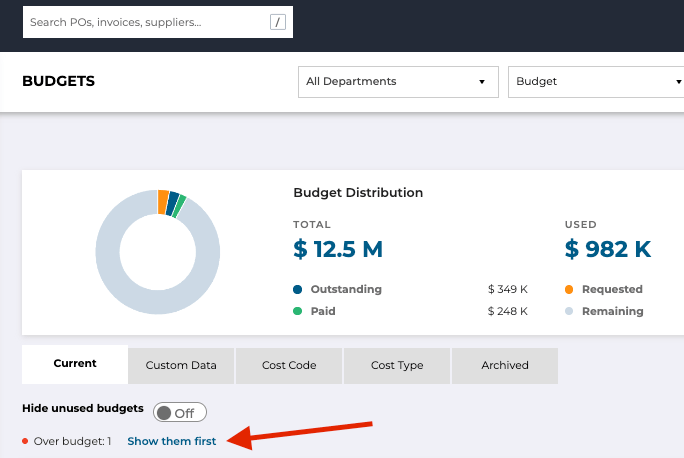
On the Budget list, each budget shows its budget use percentage, remaining amount, and a status chip — green when healthy, Near limit when it reaches 80–100% of the budget, and Over budget when spending passes the limit.
-
Use the sort and filter controls to surface budgets first that are over budget or near their limit so you can act on them.
-
Select a budget to open its detail page, which shows a summary with Remaining (or Over by), a usage meter with a break at the limit, and the Budget / Requested / Outstanding / Paid amounts with a line explaining what each counts.
-
When editing a budget, the same standing is shown up front so you know the current position before you change an amount.
Notes & warnings:
-
The used percentage is not capped at 100%, so an over-spent budget clearly shows how far past the limit it is.
-
Department spend and the donut chart use consistent colors that match the meter, and 'Spent' is labeled 'Used'.
-
Budget amounts follow your company's currency symbol setting on every budget screen.