![white logo.png]](https://faq.procurementexpress.com/hs-fs/hubfs/white%20logo.png?height=46&name=white%20logo.png)
When you use the Dynamics 365 accounting integration, ProcurementExpress tracks how much of each purchase order has been invoiced and stops invoices that would take a PO past its permitted overrun.
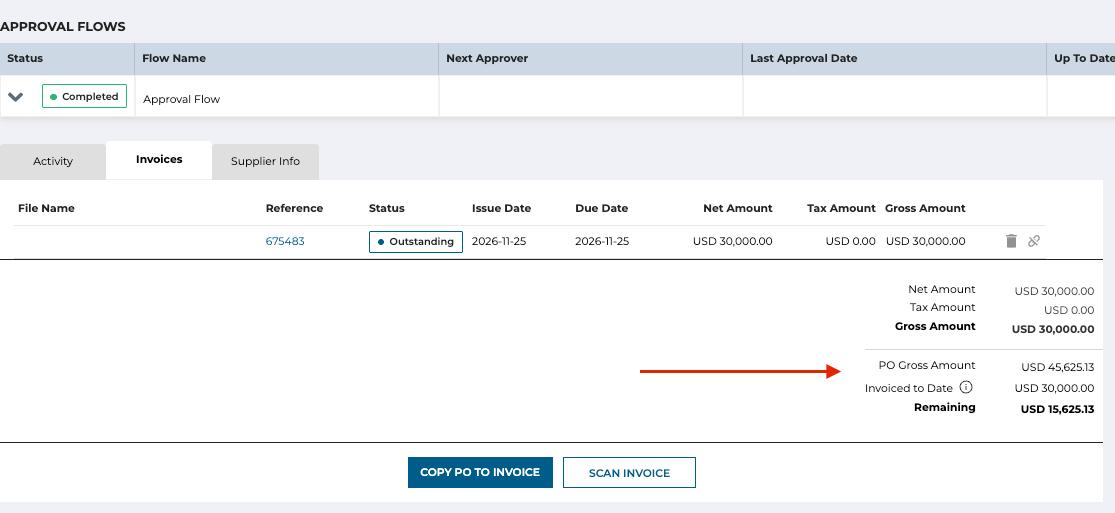
How to see invoicing progress
-
Open a purchase order.
-
Go to the Invoices tab.
-
The footer shows the PO gross value, invoiced to date and remaining (or "Over PO" if it's over).
Why an invoice might be refused
If your account has a PO overrun setting enabled, an invoice that would take the PO past the allowed amount is not sent to Dynamics 365. The invoice is marked failed and shows a message like: "Not sent to Dynamics 365. This invoice takes PO SS-055076-1 past its value by $200.00 (20%), more than the 10% allowed. Raise the PO or reduce the invoice, then resend."
What to do
-
Raise the PO value or reduce the invoice, then Resend.
-
Invoices awaiting review can't be resent until approved.
Notes
-
Only accepted invoices count against the PO; drafts don't hold back an approved invoice.
-
The Dynamics badge on an invoice shows the D365 journal number it was posted under ("D365 journal").