![white logo.png]](https://faq.procurementexpress.com/hs-fs/hubfs/white%20logo.png?height=46&name=white%20logo.png)
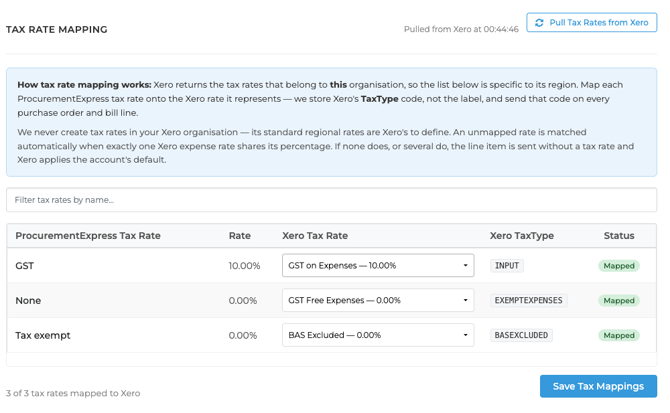
When you sync purchase orders or invoices to Xero, each line item needs a tax code that Xero recognises. Instead of ProcurementExpress creating new tax rates in your Xero chart of accounts, you can now map your existing ProcurementExpress tax rates directly to the tax rates already set up in Xero.
Why map tax rates?
Xero's standard regional tax rates (like 20% VAT in the UK or 10% GST in Australia) are built into each Xero organisation. When tax rates aren't mapped:
-
ProcurementExpress may create duplicate rates like "vat_20.0" alongside Xero's built-in "20% (VAT on Expenses)"
-
Your Xero chart of accounts becomes cluttered with extra tax codes
-
Reporting and VAT returns become harder to reconcile
Mapping ensures your synced transactions use Xero's official tax types.
Locating the Tax Rate Mapping
-
Go to your initials in the top right and then the Integrations option
-
Click on Settings for Xero
-
Scroll down to the Tax Rate Mapping section (below Budget Account Mapping)
Status indicators
-
Mapped — Rate is linked to a Xero tax type and will sync correctly
-
Will auto-match — ProcurementExpress found a Xero rate at the same percentage and will use it automatically
-
Needs a choice — Multiple Xero rates share the same percentage (e.g. zero-rated vs exempt at 0%); you must select which one to use
-
No Xero equivalent — No matching rate exists; line items will use the Xero account's default tax rate
-
Rate differs from Xero — Warning that your rate percentage doesn't match the linked Xero rate percentage
How to map your tax rates
-
Click Pull Tax Rates from Xero to fetch the latest rates from your Xero organisation
-
For each ProcurementExpress tax rate, select the matching Xero tax rate from the dropdown
-
Click Save Tax Mappings
Warning: Selecting the wrong rate between zero-rated and exempt can misstate your VAT return. If you're unsure, check with your accountant.
Activity logging
Both the Pull Tax Rates from Xero and Pull Accounts from Xero buttons now log their activity. Go to the Activity section on the Xero settings page to see when rates were last pulled and from which Xero organisation.
Still have questions? Use the Live Chat icon in the bottom right corner or send an email to support@procurementexpress.com. Have a feature suggestion? We'd love to hear from you at feedback.procurementexpress.com.