![white logo.png]](https://faq.procurementexpress.com/hs-fs/hubfs/white%20logo.png?height=46&name=white%20logo.png)
If you're building a large invoice with many line items, you can save time by importing them from a CSV file rather than adding each line manually. This works on both new invoices and existing invoices that you're editing.
Before you start:
- You need the Finance user role (or be editing your own invoice as a Team Member).
- The invoice cannot be archived, settled, or cancelled.
Steps to Import Line Items
-
Open the invoice form — either create a new invoice or click Edit on an existing one.
-
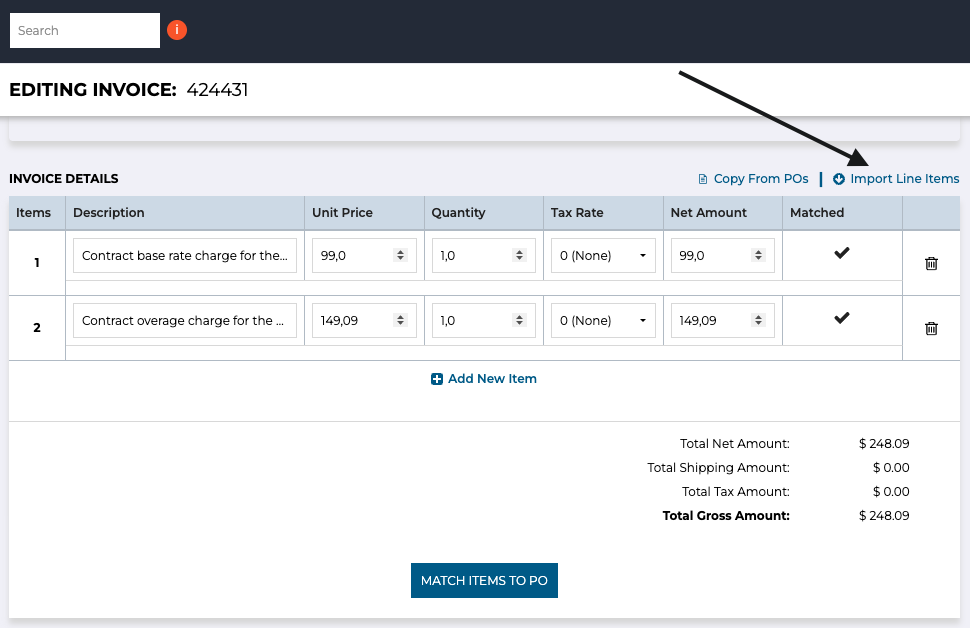
In the Line Items section, look for the Import Line Items link above the items table.
-
Click Import Line Items. A modal will appear.
-
Click the Download Sample Template link to get a CSV file with the correct column headers for your company.
-
Open the template in your spreadsheet application (Excel, Google Sheets, etc.). The columns will include:
-
Description (required)
-
Quantity (required)
-
Unit Price (required)
-
Tax Rate (optional — uses your company default if left blank or not recognised)
-
Account (required when QuickBooks is connected)
-
Any custom fields your company has configured.
-
-
Fill in your line item data. Tips:
-
Use normal number notation for quantities and prices (no comma separators).
-
For Tax Rate, use the exact name (e.g. "Standard Rate 20%"), not just the percentage.
-
For Account, use the exact account name from your Chart of Accounts.
-
-
Save your file as a CSV.
-
Back in ProcurementExpress, click Choose File or drag your CSV into the upload area.
-
Click Import.
If all rows are valid, they'll be added to your invoice immediately. The totals will recalculate automatically.
What happens if there's an error?
Required field missing or invalid:
The entire file is rejected and nothing is imported. You'll see a message telling you which row and field has the problem (e.g. "Row 3: Account is required."). Fix the issue in your CSV and try again.
Optional field not recognised:
The row is still imported, but you'll see a warning. For example, if a tax rate name isn't found, the system uses your company's default tax rate and tells you: "Row 3: Tax Rate 'Nonexistent Tax' was not found — '20' was used instead."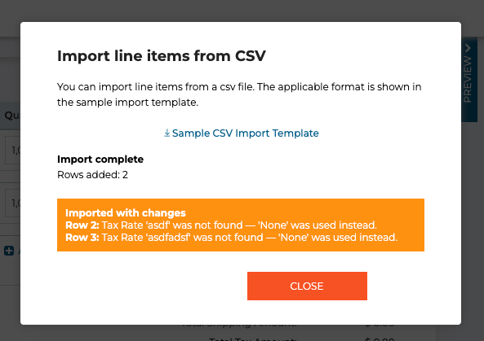
Important notes
Imported lines are not saved until you save the invoice.
If you close or refresh the page without clicking Save, the imported lines are lost.
Importing adds to existing lines.
If your invoice already has line items, the imported rows are appended below them — they don't replace anything.
You can import multiple times.
Each import adds more rows. To start fresh, delete the existing lines first.
Invoice-level fields are not affected.
The import only touches line items. Supplier, currency, invoice number, and dates remain exactly as they were.
Still have a few questions? Use the Live Chat icon in the bottom right corner, alternatively send an email to support@procurementexpress.com to get in touch with one of our Support Representatives.